


1. Introduction
The issue of lenovo laptop screen flickering horizontal lines is quite common and can be frustrating for users who rely on their laptops for work, study, or entertainment. When the screen starts flickering or shows horizontal lines, it becomes difficult to read, watch videos, or even perform basic tasks.
This problem may appear suddenly or develop over time. In some cases, it is caused by simple software glitches, while in others, it may indicate a serious hardware issue. Understanding the root cause is important because it helps you decide whether you can fix the issue yourself or need professional repair.
This guide explains everything in simple language—from causes and symptoms to practical solutions—so you can resolve the problem efficiently.
2. Understanding the Problem
2.1 What is Screen Flickering?
Screen flickering refers to a situation where your laptop display rapidly flashes, blinks, or changes brightness. It may happen continuously or occasionally depending on the underlying issue.
Technically, flickering occurs when the display fails to maintain a stable refresh cycle. This instability can be caused by software conflicts, incorrect display settings, or faulty hardware components.
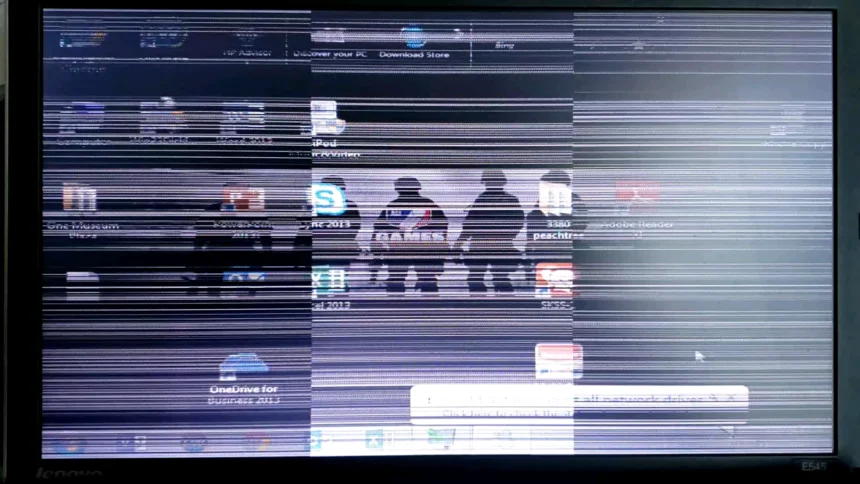
2.2 What are Horizontal Lines on Laptop Screen?
Horizontal lines are visible streaks across the screen that may be:
- Thin or thick
- Black, white, or colored
- Static or moving
These lines may appear during startup, while using applications, or all the time. Unlike flickering, which is dynamic, horizontal lines often indicate a deeper issue, especially when they remain permanently visible.
3. Common Causes of Lenovo Screen Flickering with Horizontal Lines
The issue of lenovo laptop screen flickering horizontal lines can be divided into two main categories: hardware-related and software-related causes.
3.1 Hardware-Related Causes
Hardware issues are usually more serious and may require repair or replacement.
Common hardware causes include:
- Loose or damaged display cable
- Faulty LCD panel
- Graphics processing unit (GPU) problems
- Overheating components
The display cable connects the motherboard to the screen. If it becomes loose or damaged, it can cause flickering and lines, especially when you move the laptop lid.
3.2 Software-Related Causes
Software issues are easier to fix and often occur after updates or changes in system settings.
Typical software causes include:
- Outdated or corrupted graphics drivers
- Windows update conflicts
- Incorrect screen resolution
- Wrong refresh rate
In many cases, users notice flickering after installing a new update or driver, which indicates a compatibility issue.
4. Symptoms You Should Notice
Recognizing the symptoms helps in identifying the exact problem. Below is a table summarizing common signs and their possible meanings:
| Symptom | Possible Cause |
|---|---|
| Flickering when moving screen | Loose display cable |
| Lines appear permanently | LCD panel damage |
| Flickering only in Windows | Driver issue |
| Problem visible in BIOS | Hardware issue |
| Screen distortion or color changes | GPU or display fault |
These symptoms act as early warning signs and should not be ignored.
5. Quick Diagnosis Methods (Step-by-Step)
Before jumping to solutions, it is important to diagnose the problem correctly.
5.1 External Monitor Test
Connect your laptop to an external monitor or TV using an HDMI cable.
- If the external screen works perfectly, the issue is likely with your laptop screen or cable.
- If both screens show flickering, the problem may be related to the GPU or motherboard.
5.2 BIOS Test
Restart your laptop and enter BIOS settings.
- If flickering appears in BIOS, it confirms a hardware issue.
- If the BIOS screen is stable, the issue is likely software-related.
5.3 Lid Movement Test
Slowly move your laptop screen back and forth.
- If flickering changes or lines appear/disappear, the display cable is likely damaged or loose.
6. How to Fix Lenovo Laptop Screen Flickering Horizontal Lines
6.1 Basic Fixes (Easy Solutions)
Start with simple solutions before moving to advanced steps.
First, restart your laptop. This can resolve temporary glitches.
Next, ensure your system is updated. Sometimes, outdated software can cause display issues.
You should also check the refresh rate:
- Go to Display Settings
- Select Advanced Display
- Set it to the recommended value (usually 60Hz or higher)
6.2 Driver-Based Fixes
Graphics drivers play a major role in display performance.
Steps to fix driver issues:
- Open Device Manager
- Expand Display Adapters
- Update the driver
If updating does not work, try reinstalling the driver. In some cases, rolling back to a previous version can also fix the issue.
6.3 Advanced Fixes
If the problem persists, try advanced solutions.
- Disable hardware acceleration in applications
- Adjust brightness and display settings
- Run a full system scan for malware
These steps help eliminate hidden software conflicts.
7. Hardware Fix Solutions
When software fixes do not work, hardware repair becomes necessary.
7.1 Fixing Display Cable
If the issue is caused by a loose cable, a technician can repair or replace it. This is usually an affordable solution.
7.2 Replacing Laptop Screen (LCD Panel)
If the screen itself is damaged, replacement is required.
Signs you need a new screen:
- Permanent horizontal lines
- Cracked display
- Severe flickering
7.3 GPU Repair or Replacement
This is a rare but serious issue. If the graphics chip is damaged, it may require motherboard repair or replacement, which can be costly.
8. When to Visit a Technician
You should seek professional help if:
- The lines are permanent
- Flickering occurs even in BIOS
- External monitor works fine but laptop screen does not
- The issue worsens over time
Ignoring these signs can lead to further damage.
9. Prevention Tips
Preventing the issue is always better than fixing it later.
To avoid lenovo laptop screen flickering horizontal lines, follow these practices:
- Handle your laptop carefully, especially the hinge area
- Keep your system updated
- Avoid overheating by using proper ventilation
- Use original chargers and accessories
Regular maintenance can significantly extend your laptop’s lifespan.
10. Cost of Repair
The cost of fixing this issue depends on the cause. Below is an estimated cost table:
| Repair Type | Estimated Cost |
|---|---|
| Display cable repair | Low |
| Screen replacement | Medium |
| GPU or motherboard repair | High |
Prices may vary depending on your location and laptop model.
11. Frequently Asked Questions (FAQs)
1. Why does my Lenovo laptop screen flicker with horizontal lines?
This usually happens due to display cable issues, screen damage, or outdated graphics drivers.
2. Can this issue be fixed without replacing the screen?
Yes, if the problem is software-related or due to a loose cable.
3. Are horizontal lines always a hardware problem?
Not always. Temporary lines can be caused by software, but permanent lines usually indicate hardware damage.
4. Can drivers cause screen flickering?
Yes, outdated or corrupted drivers are one of the most common causes.
5. Is it safe to keep using a flickering laptop?
It is not recommended, as the issue may worsen and cause further damage.
12. Conclusion
The problem of lenovo laptop screen flickering horizontal lines can range from minor software glitches to serious hardware failures. The key is to diagnose the issue correctly using simple tests like the external monitor and BIOS check.
If the issue is software-related, it can usually be fixed with driver updates or display adjustments. However, if it is hardware-related, professional repair may be necessary.
By following the steps and tips in this guide, you can not only fix the issue but also prevent it from happening again in the future.