


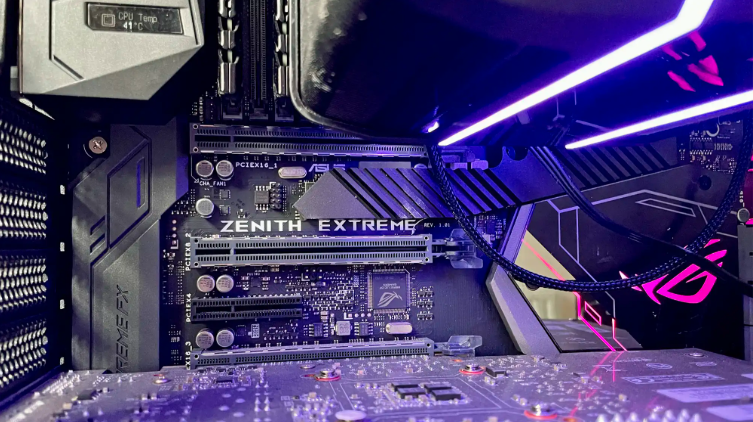
Updating your motherboard BIOS can unlock better hardware compatibility, stability fixes, and in some cases, noticeable performance improvements — especially with newer CPUs and RAM. However, it’s not a magic boost for every system, and the results vary depending on your hardware and current BIOS version.
In this guide, we’ll walk you through whether a BIOS update is worth it for you, cover Common BIOS Update Mistakes to Avoid, and show you How to Safely Update Your Motherboard BIOS step by step.
What Is a Motherboard BIOS?
A motherboard BIOS stands for “Basic Input Output System.” It is firmware installed on the motherboard that starts your computer before the operating system loads. The BIOS checks hardware components like the CPU, RAM, storage drives, and graphics card to make sure everything works correctly.
Without BIOS, a computer cannot properly boot or communicate with hardware devices. Modern systems now use UEFI firmware, which is an advanced version of traditional BIOS with better speed, security, and support for modern hardware.
| BIOS Function | Purpose |
| Hardware Initialization | Detects CPU, RAM, GPU, and storage |
| Boot Process | Starts Windows or other operating systems |
| Hardware Communication | Allows components to work together |
| System Configuration | Controls settings like fan speed and RAM profiles |
What Does a BIOS Update Do?
A BIOS update modifies the motherboard firmware to improve compatibility, stability, security, and hardware support. Manufacturers regularly release BIOS updates to fix bugs and optimize motherboard performance for newer components.
These updates can improve system reliability, reduce crashes, and support newly released CPUs or RAM modules. Some BIOS updates also improve memory timing and system communication, which may help performance in certain workloads or games.
Does Updating BIOS Improve Performance?
Yes, updating BIOS can improve performance in some cases, but the results depend on your hardware and the type of update released by the motherboard manufacturer. Most BIOS updates are focused more on stability and compatibility than massive speed improvements.
If your system already works perfectly, you may not notice any performance difference after updating the BIOS. However, users with older BIOS versions, unstable RAM, or newer CPUs may see better gaming smoothness, faster boot times, and improved hardware efficiency.
Situations Where a BIOS Update Can Increase Performance
A BIOS update can help performance when the system has compatibility problems, outdated firmware, or hardware limitations. The following situations explain where improvements are most noticeable.
Better CPU Support
New BIOS versions often include microcode updates for processors. These updates help the motherboard fully support newer CPUs and improve communication between the processor and the motherboard.
For example, many AMD and Intel motherboards require BIOS updates before supporting newer-generation processors. Without the update, the CPU may underperform or fail to boot correctly.
Improved RAM Compatibility
RAM compatibility is one of the biggest reasons people update BIOS. Some systems struggle to run high-speed RAM kits at their advertised speeds because older BIOS versions lack optimized memory support.
A BIOS update can improve XMP stability, memory timings, and RAM detection. This helps the system run smoother, especially during gaming, multitasking, and heavy workloads.
Gaming Optimization
Some BIOS updates include optimizations for gaming technologies such as Resizable BAR or Smart Access Memory. These features allow the CPU to communicate more efficiently with the graphics card.
Although BIOS updates rarely increase FPS dramatically, they may reduce stuttering, improve frame consistency, and create smoother gameplay in supported games.
Faster System Stability
An unstable PC often experiences freezes, blue screens, random restarts, or application crashes. BIOS updates can improve voltage management, thermal behavior, and hardware communication to stabilize the system.
A more stable computer performs better over time because components work correctly under load without interruptions.
Reduced Crashes and Stuttering
Some gaming and productivity issues are caused by firmware bugs instead of weak hardware. BIOS updates may fix communication errors between RAM, GPU, and CPU that cause stuttering or sudden crashes.
After updating BIOS, many users notice smoother multitasking and fewer unexpected performance drops.
Cases Where BIOS Updates Do NOT Improve Performance
BIOS updates are not magical upgrades that instantly make a computer faster. If your system is already stable and optimized, the performance improvement may be too small to notice.
For example, updating BIOS will not suddenly transform an old processor into a high-end gaming CPU. Likewise, low RAM capacity, slow storage drives, or weak graphics cards cannot be fixed by a BIOS update alone.
Here are some situations where BIOS updates usually do not help:
| Situation | Performance Impact |
| Old low-end hardware | Minimal improvement |
| Already stable gaming PC | Little or no FPS gain |
| Slow HDD storage | BIOS cannot fix drive speed |
| Weak GPU limitations | No major graphics boost |
BIOS Update and Gaming FPS Performance
Many gamers search for answers to “does updating motherboard BIOS improve performance” because they want higher FPS in games. In reality, BIOS updates sometimes improve gaming performance indirectly rather than increasing raw frame rates dramatically.
For example, better RAM compatibility and CPU communication can improve frame pacing and reduce lag spikes. Some BIOS updates also enable technologies that help graphics cards perform more efficiently.
In most cases, users may notice smoother gameplay instead of huge FPS increases.
Can BIOS Updates Improve Boot Speed?
Yes, some BIOS updates can improve boot speed by optimizing hardware initialization during startup. Manufacturers may improve storage detection, memory training, and startup procedures in newer firmware versions.
Systems using NVMe SSDs and modern UEFI firmware often benefit the most from these improvements. However, the speed difference is usually small unless the old BIOS had serious boot-related issues.
BIOS Updates for New CPUs and GPUs
Modern hardware frequently requires updated BIOS firmware for proper support. This is especially common with AMD Ryzen processors and newly released Intel CPUs.
If the motherboard BIOS is outdated, the system may not recognize the processor correctly or may fail to boot completely. BIOS updates also improve compatibility with newer graphics cards and PCIe technologies.
| Hardware Upgrade | Why BIOS Update Helps |
| New CPU installation | Adds processor support |
| Faster RAM kit | Improves memory compatibility |
| Modern GPU | Enhances PCIe communication |
| NVMe SSD | Better storage detection |
Security Improvements in BIOS Updates
BIOS updates sometimes include important security patches that protect the system from vulnerabilities and firmware attacks. These updates help secure communication between hardware and software.
Manufacturers release security-focused BIOS updates to fix processor-level vulnerabilities discovered in Intel or AMD platforms. Updating BIOS helps keep systems safer from low-level exploits.
Stability Fixes and Bug Patches
One major purpose of BIOS updates is fixing bugs that affect system performance and reliability. Some motherboards release firmware issues that cause instability under heavy workloads.
Updated BIOS versions can solve problems related to overheating sensors, voltage control, USB ports, RAM instability, and unexpected crashes. These fixes improve the overall user experience and system reliability.
Risks of Updating Motherboard BIOS
Updating BIOS can be useful, but it also carries risks if done incorrectly. A failed BIOS update can make the motherboard unusable until repaired.
Power Failure Risk
If the computer loses power during the BIOS flashing process, the firmware may become corrupted. This can prevent the system from booting properly.
Using a UPS or stable power source during BIOS updates reduces this risk significantly.
Wrong BIOS Installation
Installing the wrong BIOS file for your motherboard model can damage firmware compatibility. Always check the motherboard model carefully before downloading updates.
Motherboard manufacturers usually provide BIOS files specifically for each motherboard version.
System Corruption
Interrupting the BIOS update process by restarting the PC or removing storage devices can corrupt the motherboard firmware. This may require advanced recovery methods or professional repair.
Signs You Should Update Your BIOS
You should consider updating BIOS if your system experiences hardware compatibility issues, instability, or missing support for newer components.
Common signs include:
- Frequent system crashes
- RAM not running at rated speed
- Installing a new CPU
- Boot failures
- Hardware detection issues
- Random blue screen errors
Signs You Should NOT Update Your BIOS
If your computer runs perfectly without issues, updating BIOS may not be necessary. Many manufacturers also recommend avoiding BIOS updates unless needed.
You may skip BIOS updates when:
- The system is stable
- No new hardware is being installed
- The update notes contain irrelevant fixes
- You are unfamiliar with BIOS flashing procedures
How to Check Your Current BIOS Version?
You can check the current BIOS version through Windows System Information or directly inside BIOS settings.
To check in Windows:
- Press Windows + R
- Type “msinfo32”
- Press Enter
- Look for “BIOS Version/Date”
This information helps determine whether your motherboard requires an update.
How to Safely Update Your Motherboard BIOS?
Safely updating BIOS requires careful preparation and patience. Always download BIOS files from the official motherboard manufacturer website.
Follow these steps carefully:
- Identify your motherboard model
- Download the correct BIOS file
- Read manufacturer instructions
- Copy BIOS file to USB drive
- Enter BIOS setup
- Use built-in BIOS flashing tool
- Wait until the process completes
Never turn off the computer during the update process.
Things to Do Before Updating BIOS
Preparing properly before updating BIOS reduces the risk of failure. Backup important files and ensure stable electricity during the update.
Important preparation steps include:
| Preparation Step | Reason |
| Backup important data | Prevent accidental loss |
| Check motherboard model | Avoid wrong BIOS installation |
| Read release notes | Understand update purpose |
| Use stable power source | Prevent interruption |
| Reset overclock settings | Improve update stability |
BIOS vs UEFI: What’s the Difference?
Traditional BIOS is older firmware technology, while UEFI is the modern replacement with faster boot times, better security, and improved hardware support.
UEFI supports larger storage drives, graphical interfaces, and modern security features such as Secure Boot. Most modern motherboards now use UEFI instead of legacy BIOS.
| BIOS | UEFI |
| Older technology | Modern firmware |
| Slower boot | Faster startup |
| Limited drive support | Supports large drives |
| Basic interface | Graphical interface |
Does BIOS Affect RAM Speed and XMP?
Yes, BIOS directly controls RAM settings, memory timings, and XMP profiles. An outdated BIOS may struggle to run RAM at advertised speeds.
BIOS updates often improve memory compatibility, allowing higher-frequency RAM kits to operate more reliably. This can improve gaming smoothness and system responsiveness.
Can BIOS Updates Fix Game Stuttering?
Sometimes BIOS updates can reduce game stuttering if the issue is related to RAM compatibility, CPU communication, or motherboard firmware bugs.
However, not all stuttering problems are BIOS-related. Background applications, overheating, outdated drivers, or weak hardware can also cause gaming lag.
Common BIOS Update Mistakes to Avoid
Many BIOS update failures happen because users ignore safety precautions. Understanding common mistakes helps reduce the risk of motherboard damage.
Avoid these mistakes:
- Installing incorrect BIOS files
- Turning off the PC during updates
- Updating BIOS unnecessarily
- Ignoring motherboard revision numbers
- Using unstable overclock settings during flashing
How Long Does a BIOS Update Take?
Most BIOS updates take between 3 and 10 minutes depending on the motherboard and update size. Some systems restart multiple times during the process.
It is important to remain patient and avoid interrupting the update, even if the screen appears frozen temporarily.
FAQs
Can a BIOS update improve internet or Wi-Fi performance?
A BIOS update normally does not directly increase internet speed, but it can improve motherboard stability and network hardware communication. In some cases, it may fix connectivity bugs or compatibility issues with newer Wi-Fi cards.
Does updating BIOS erase Windows or personal files?
No, a BIOS update usually does not delete Windows, games, or personal files stored on your drives. However, BIOS settings such as boot order, fan curves, or overclocking profiles may reset to default values.
Can BIOS updates improve CPU temperature?
Some BIOS updates improve fan control, voltage management, and power delivery settings. This may slightly reduce CPU temperatures and improve cooling efficiency under heavy workloads.
Should I update BIOS before installing Windows?
If your motherboard supports your hardware correctly, you can install Windows without updating the BIOS. However, for newer CPUs or RAM kits, updating BIOS first may prevent compatibility issues during installation.
Does updating BIOS improve SSD performance?
A BIOS update can sometimes improve NVMe SSD detection, stability, and communication speeds. However, it usually does not create massive storage speed improvements unless the previous firmware had bugs.
Can BIOS updates improve laptop performance?
Laptop BIOS updates may improve battery management, thermal control, and system stability. In some cases, they can help optimize performance during gaming or multitasking.
Is BIOS update different for every motherboard brand?
Yes, every motherboard manufacturer uses different BIOS files and update tools. ASUS, MSI, Gigabyte, and ASRock all have their own BIOS update methods and interfaces.
Conclusion
The answer to “does updating motherboard BIOS improve performance” depends on the condition of your system and the purpose of the update. BIOS updates mainly improve compatibility, stability, hardware support, and security rather than delivering massive speed boosts.
In certain situations, BIOS updates can improve RAM performance, gaming smoothness, boot speed, and CPU efficiency. However, users with stable systems may notice little difference after updating.