

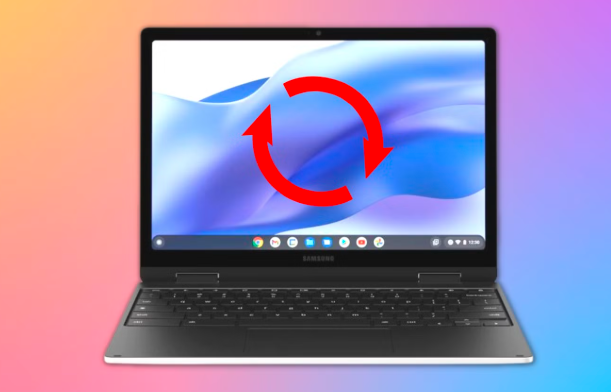
If you want to know how to rotate the screen on a Chromebook without the Refresh button, you are in the right place. Many Chromebook users face this issue, especially when the standard keyboard shortcut does not work on their device.
In this guide, we will discuss Easy Methods to Rotate Screen Without Refresh Key and How to Fix Screen if It’s Stuck Sideways so you can get your display back to normal in just a few simple steps.
What Does Screen Rotation Mean on Chromebook?
Screen rotation refers to changing the direction of your Chromebook display from its normal horizontal view to different angles such as vertical or upside down. This feature is controlled by the operating system and helps improve usability in different tasks.
On Chromebooks, screen rotation usually works in four directions: 0°, 90°, 180°, and 270°. Each angle changes how content appears on your screen, making it more flexible for reading, browsing, or working.
Why You May Not Have a Refresh Button?
Not all Chromebooks come with the same keyboard layout, and this is why many users do not find the Refresh button. In some newer models, compact designs remove or relocate certain keys.
Another reason is that external keyboards or tablet-mode Chromebooks may not include Chromebook-specific keys at all. In such situations, relying on system settings becomes the most reliable method for screen rotation.
Easy Methods to Rotate Screen Without Refresh Key
There are several ways to rotate your Chromebook screen even without a Refresh button. ChromeOS provides built-in options that make this process simple.We will discuss below the main methods like settings, display orientation, and tablet mode.
Using Chromebook Settings (Best Method)
The Settings menu is the easiest and most reliable way to rotate your screen without any keys. This method works on all Chromebooks regardless of model.
When you use settings, you are directly controlling the display configuration. This ensures stable rotation without accidental changes caused by keyboard shortcuts or hardware differences.
Using Display Orientation Options
ChromeOS allows users to manually select screen orientation angles. These options give full control over how the screen appears.
You can choose from multiple angles depending on your needs. This is especially helpful when connecting external monitors or using your Chromebook for presentations or reading tasks.
| Orientation Angle | Screen Position |
| 0° | Normal landscape mode |
| 90° | Rotated left (portrait mode) |
| 180° | Upside down |
| 270° | Rotated right (reverse portrait) |
These options ensure flexibility and make it easier to adjust the screen without needing any keyboard shortcut like the Refresh button.
Using Touchscreen / Tablet Mode (If Available)
If your Chromebook is a 2-in-1 device, it may automatically rotate the screen when switched to tablet mode. This feature depends on built-in sensors that detect device movement.
Tablet mode is useful for reading, drawing, or using apps in portrait orientation. In this case, rotation happens automatically, so you do not need to adjust settings manually unless you want to lock a specific orientation.
Step-by-Step Guide: Rotate Screen from Settings
We will discuss below how you can easily rotate your Chromebook screen using the Settings option without needing any keyboard shortcuts or Refresh button. This method is simple, safe, and works on all Chromebook models.
- Click on the time (bottom-right corner) of the screen
- Open Settings (gear icon)
- Go to Device section
- Click on Displays
- Find the Orientation option
- Select your preferred angle:
- 0° (normal screen)
- 90° (left rotation)
- 180° (upside down)
- 270° (right rotation)
- Screen will rotate instantly after selection
- To fix, set orientation back to 0°
How to Fix the Screen if It’s Stuck Sideways?
Sometimes the screen may rotate accidentally, which can make it difficult to use the device normally. This issue is usually caused by incorrect orientation settings.
To fix it, you only need to go back to the display settings and set the orientation back to 0°. This restores the standard view instantly. In rare cases, restarting the Chromebook may also help reset the display properly.
Alternative Keyboard Tips (Without Refresh Key)
Even without a Refresh button, some users still prefer keyboard-based controls. However, ChromeOS does not always require shortcuts for screen rotation.
If you are using an external keyboard, you may not have Chromebook-specific keys. In that case, it is better to rely on system settings instead of trying alternative shortcuts that may not work consistently.
The settings method remains the safest and most universal solution for all devices.
Common Problems and Solutions
| Problem | Reason | Solution |
| Rotation option missing | Outdated ChromeOS | Update system software |
| Screen not rotating | Disabled setting or glitch | Restart device and recheck settings |
| Tablet mode not working | Sensor issue | Recalibrate or restart Chromebook |
| External display not rotating | Separate display settings | Adjust monitor settings manually |
These issues are common but can usually be resolved quickly with basic troubleshooting steps.
Tips to Avoid Accidental Screen Rotation
Accidental screen rotation can interrupt your work and create confusion, especially when using touch-enabled devices. To avoid this, it is important to manage your display settings carefully.
Keeping your orientation locked in settings when not needed is one of the best ways to prevent sudden changes. If you are using tablet mode, avoid unnecessary rotation by placing the device on stable surfaces.
Regularly updating ChromeOS also helps maintain proper system behavior and reduces glitches.
Benefits of Screen Rotation Feature
Screen rotation is not just a visual feature; it also improves productivity and user experience. Many users benefit from adjusting their screen orientation based on their work style.
Some key benefits include better reading comfort in portrait mode, improved multitasking on external monitors, and easier use of drawing or design applications. It also enhances usability for students and professionals who switch between different viewing modes.
Frequently Asked Questions (FAQs)
Can I rotate my Chromebook screen without any keyboard shortcuts?
Yes, you can rotate it easily from Settings without using any keyboard shortcuts. Go to Display settings and change the orientation option.
Does every Chromebook support screen rotation?
Most modern Chromebooks support this feature. However, some basic models may not include it.
What should I do if my Chromebook has no Refresh button?
You can simply use the display settings method instead of shortcuts. It works on all Chromebook models.
Why is my screen rotation option missing?
This usually happens due to an outdated ChromeOS version or device limitation. Updating the system may fix it.
Does tablet mode rotate the screen automatically?
Yes, in 2-in-1 Chromebooks the screen rotates automatically. It uses built-in sensors for adjustment.
Why did my screen rotate suddenly?
It may happen due to accidental settings change or movement. Tablet mode can also trigger it.
Is screen rotation useful for studying?
Yes, portrait mode makes reading easier and more comfortable. It improves focus and visibility.
Conclusion
Learning how to rotate the screen on Chromebook without the Refresh button is simple once you understand the built-in display options. ChromeOS provides flexible settings that allow you to control screen orientation without relying on keyboard shortcuts.
Whether you use settings, display orientation options, or tablet mode, each method ensures smooth and reliable rotation. With the right steps, you can easily adjust your screen anytime and improve your overall Chromebook experience.